
Post-install
Out of the box, Hammer should be good enough for most people. However, this page contains a few things you can do after installing Hammer to possibly get better performance, etc.
Improve performance
There are some ways to improve your performance past installation. Some of them are experimental and should only be used if you really want to.
Extra mods to consider
Concurrent Chunk Management Engine (NeoForge)
Improves chunk performance using multi-threading. It’s not included because it can reduce rendering performance while also not really granting a benefit in singleplayer. You should only need to install it on the client if:
- You have multiple players on the integrated server (open to LAN)
- You are using mods such as Chunky and want faster generation
- You are using complex worldgen mods such as Terralith
C2ME only has an impact when used on a dedicated server or in singleplayer (integrated server). It does not do anything when the client is connected to a server.
Immersive Optimization
Entity tick scheduler that improves logic performance without affecting Vanilla functionality. Not included in Hammer by default as it may have some rough edges. May be implemented in the future.
Moonrise
An official port of several Paper patches to NeoForge, improves logic performance. Not included in Hammer as it is incompatible with a very large amount of mods. Supersedes a few mods including ScalableLux and C2ME. If you add this, you will have to remove ScalableLux and C2ME, and possibly other mods. See their Modrinth page for more information.
ThreadTweak
You may want to install ThreadTweak if you notice stutters when generating chunks. Otherwise, ThreadTweak is very likely not needed and could actually reduce performance in a couple scenarios.
- Used to be shipped out of the box with Hammer, but after some reasoning, we have gotten rid of it.
- If you do not want to use ThreadTweak, there are other mods that do the same thing, such as StutterFix, or using the
mixin.perf.thread_prioritiesmixin in ModernFix.
Setting your allocated memory
Before setting your memory used by Minecraft, you should first check your system’s memory.
How to check on Windows, Linux, and Mac
If you’re on a Windows system, open up Task Manager, go to the performance tab, and under “memory” you should see the amount you have installed on your system.
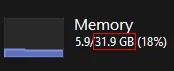
If you’re on a Linux system, you can see how much memory you have installed by running free -g -h -t. You’ll see it in column “Total” and row “Mem”.
If you’re on a Mac, click the Apple menu and click “About This Mac”. You’ll see your installed RAM next to “Memory”.
Allocating more memory to Minecraft may reduce stutters and increase performance greatly if you are running out, but setting it too high can cause issues as well. If you have a low amount of memory installed, please make sure to keep enough memory for your system. As a general recommendation, 2-4 GB (2048-4096 MB) is usually all you should use for unmodified Adrenaline, Additive, Hammer or Vanilla. Playing with many mods? I’d suggest 4-8 GB (4096-8192 MB), however you may set this lower if needed. Do what works for you. Do not set your allocated memory to the same amount as your installed memory, as you could run out of memory for the rest of your OS.
In Prism Launcher, you can set your memory by going to Settings > Java > Maximum memory allocation. I’d advise that you keep the Minimum memory allocation unchanged.
If you are severely limited on memory, you can probably run the game fine even at 1GB with unmodified Hammer. However, below 1GB is untested and not recommended. If you need even more memory savings for whatever reason, you could try enabling ModernFix’s mixin.perf.deduplicate_location at a cost of load time impact.
Change your Minecraft settings
By default, Hammer does not change any of Minecraft’s quality/graphics settings, except for simulation distance which will be explained later.
General
Start by changing your render distance. The higher this number, the further you can see. If you are playing on multiplayer, servers usually have a cap for render distance. On low-end systems, this should be set to 4-8 chunks. Mid-range systems will usually work well with 8-16 chunks, and high-end systems should be fine with 12-32 chunks.
After this, you can change your simulation distance. This is the distance in chunks that entities, blocks, fluids, etc are ticked, meaning that things like farms outside of this distance may not work properly. You can set this to 5 for better performance, but it could affect mob spawning or farms. This only affects singleplayer - you won’t notice anything while playing on servers as they have their own setting for simulation distance.
I recommend keeping V-Sync turned off unless you notice screen tearing, which in that case, turn it on or alternatively use Adaptive V-Sync. To use Adaptive V-Sync, you will need to install the Sodium Extra mod (respectively Embeddium (Rubidium) Extra mod for 1.20.1). Adaptive V-Sync typically has less input latency than normal V-Sync.
Quality
On mc1.21.11 or later, it is heavily recommended that you do not turn on “Improved Transparency” unless you absolutely need it’s benefits, as it can impact performance significantly. Otherwise if you are below mc1.21.11, it is not recommended that you set the graphics preset to “Fabulous” for the same reason.
If there are a lot of entities being rendered at once, it may help to reduce “Entity Distance”. This is the distance at which entities are rendered.
You may want to try lowering “Mipmap Levels”. However, this only mainly affects performance when using a resourcepack that has many animated textures.
Setting particles to a lower quality setting may also help with performance at certain points.
You can hover over any other setting to see a description of what it does and it’s impact.
MacOS half resolution
If you’re on a Mac with a Retina display, it is heavily recommended to install Sodium Extra (respectively Embeddium (Rubidium) Extra for 1.20.1) and enable the “half resolution” option under the “Extra” tab. You will have to restart the game after enabling this. Retina displays have very high native resolutions, so running Minecraft at half resolution won’t affect quality noticeably while resulting in a large boost in performance and battery life.
Improve your experience
Hammer is shipped extremely bare-bones and is designed to be flexible so that the user can customize their instance however they want to. Here are some commonly installed mods:
Sodium add-ons
One mod I recommend installing is Sodium Extra (respectively Embeddium (Rubidium) Extra for 1.20.1). This mod lets you configure extra graphics options and add an FPS counter in the corner of your screen.
On Minecraft versions older than mc1.21.11 you may also want to install Reese’s Sodium Options (respectively, in 1.20.1 it is already integrated with Embeddium.). This improves the layout of the Sodium menu. This is not needed on mc1.21.11 or later as Sodium has redesigned their menu.
Shader support
To get support for shaderpacks, install the Iris Shaders mod (respectively Oculus mod for 1.20.1) and then check it out in the Video Settings menu.
Iris/Oculus does not come with built-in shaders. You can get shaders from Modrinth, and then drop them in the shaderpacks folder.
Controller support
To get controller support on Minecraft Java Edition, you can install Controlify. This is especially handy if you are on a Steam Deck.
Immersive VR support
If you want to play immersively on VR, the Vivecraft mod exists for that. View vivecraft.org for more information on how the mod works and how to use it.